There are times when you might want to share a PDF, but want to make sure people who receive the file do not edit, copy, or print the document.
Beyond sharing the document in the cloud (BOX, Dropbox) and restricting access rights using your cloud drive’s security features, there are also settings within Adobe Acrobat Pro that give you some control over the use of the file.
Here are the basic instructions on how to change the security settings of your PDF :
(Note: these settings may appear in a different location, depending on the version of Adobe Acrobat Pro you’re using, but you should find similar options in most versions of Adobe Acrobat Pro.)
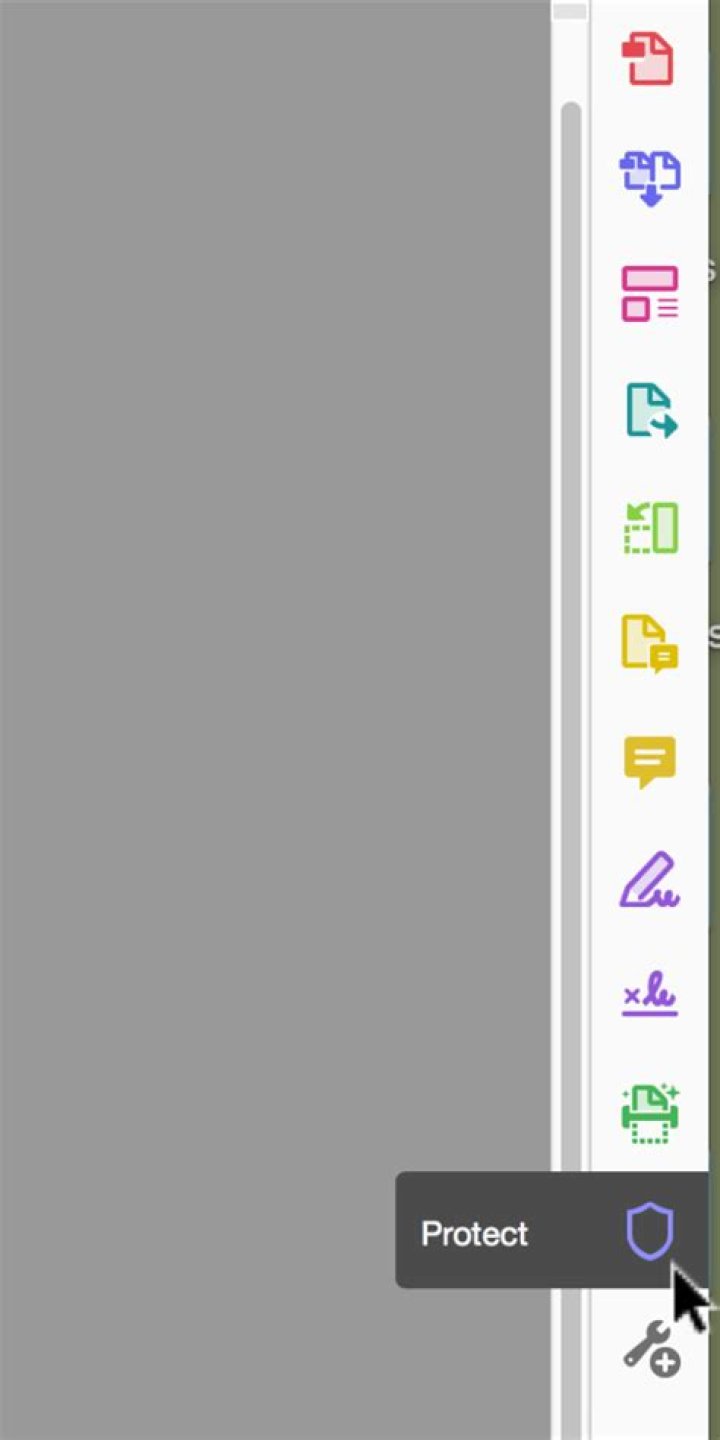
1. Open the PDF document in Adobe Acrobat Pro. 2. In the main menu above (top left side of your screen) Select “File”. 3. Select “Properties”. 4. Click the “Security” tab. 5. Under “Document Security”, select “Change settings”. 6. To “password protect” the PDF, you can check the box to “Require a password to open the document”. 7. You can also “Restrict editing and printing of the document” here (using a different password from the one you used to “password protect” the document). 8. To restrict editing and printing – check the box next to “Restrict editing and printing of the document”. 9. You will be asked to enter a password to lock these settings. 11. Click OK. 12. To confirm, a window will pop up asking you to enter the password again (make sure you remember it or write it down somewhere). 13. You can also Encrypt your PDF, and set the encryption level in this same window. 14. You must Save the document in order for these security changes to take effect.As with many programs, there are several ways to get to the same destination in Adobe Acrobat Pro. You can also find these and other security settings by clicking the Protect icon on the right side of the window in Adobe Acrobat Pro.
All Adobe products enforce the restrictions set by the Permissions Password. However, not all third-party products fully support and respect these settings. Recipients using such third-party products might be able to bypass some of the restrictions you have set.